Quick and Simple Method for Pushing Code to GitHub Using Git
Easily Upload Your Code to GitHub with Git
I'm a passionate Full Stack JS Developer focused on creating robust and efficient solutions. You'll find articles here covering my experiences with React/Next.js, Node.js/Express, TypeScript, and general development best practices. Let's talk code!
In this tutorial, we are going to discuss how to work with Git and GitHub, or how to push code on GitHub using Git (Version control system) in a simple ways.
Step. 1
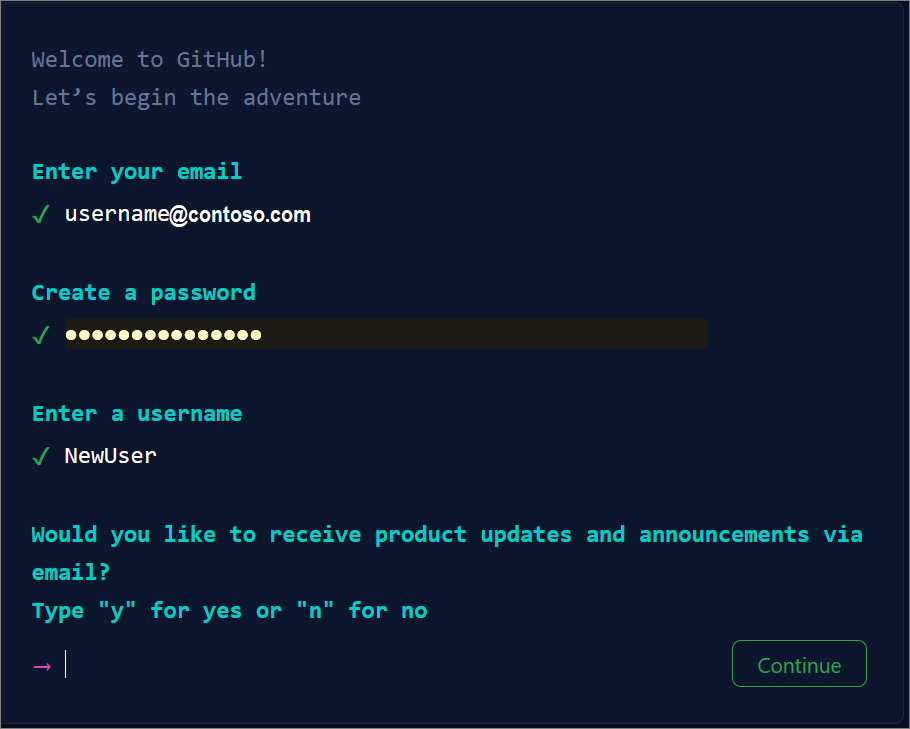
First of all, you need to have a GitHub account so you can easily create a GitHub account using github.com. Here, you can visit github.com, click on the "Sign up" button, enter your email, name, username, create a password, and click on "Create".
Once you have your GitHub account, keep signing in.
Step. 2
Download Git for your operating system like Git for Linux/Unix, Windows, or macOS. Once the download is complete, go to your download folder and install it on your system.
Step. 3
Push code to GitHub: There are two ways to push your code to GitHub. The first is if you don't have any git repository, and the second is if you already have a repository.
If you don't have git repo...
If you don't have a git repository, you should start by initializing one.
git init
git add README.md //if you don't have any file
git commit -m "first commit"
git branch -M main
git remote add origin https://github.com/username/reponame.git
git push -u origin main
That's it, your code is ready to be pushed to your GitHub repository.
Push existing repository...
To push an existing repository to GitHub, use these commands in your terminal:
git remote add origin https://github.com/username/reponame.git
git branch -M main
git push -u origin main
And that's it! Your repository has been pushed to your GitHub profile.
That's all for this tutorial. Thanks for reading!


